

CodeBuddy
腾讯云AI code review plugin for VS Code and JetBrains — enter /cr or select code to automatically review and generate commit messages.
A coding assistant plugin that provides AI-powered technical chat and code completion in mainstream IDEs such as VS Code and Visual Studio.
CodeBuddy is an AI programming plugin launched by Tencent Cloud that assists development through two types of features: technical chat and code completion. By entering natural language requirements or selecting code, you can ask questions, get code explanations, fixes, test generation, and code reviews; Craft mode supports generating complete applications from natural language requirements. It has Tencent Hunyuan large models built in, and can switch among multiple models including MiniMax, GLM, Kimi, DeepSeek, and more. It supports VS Code, Visual Studio, the WeChat DevTools IDE, and Xcode. For pricing and open-source status, please refer to the official website.
In terms of features, the chat panel offers three modes: Ask, Craft, and Plan. Ask is for conversational technical Q&A, Craft generates complete applications from natural language requirements, and Plan first maps out requirements and then implements them step by step via an intelligent to-do list. The in-editor chat panel supports explaining selected code, generating documentation, fixing issues, generating tests, and code review. Quick commands are invoked with / or @, such as /init, /cr, /tests, /explain, and /fix, and context can be added via @Git, @Docs, @Terminal, and more. Code completion supports many mainstream languages including C, C++, C#, Go, Java, JavaScript, TypeScript, Python, and SQL. Besides Tencent Hunyuan, switchable models include MiniMax-M3, GLM-5v-Turbo, GLM-5.2, GLM-5.1, Kimi-K3, Kimi-K2.7-Code, Kimi-K2.6, Deepseek-V4-Flash, and Deepseek-V4-Pro.
Developers using VS Code, Visual Studio, the WeChat DevTools IDE, or Xcode, including software engineers who need code completion, technical Q&A, and project-level requirement delivery.
Install the CodeBuddy plugin in your IDE and log in.
Open the chat panel on the left, ask questions in natural language, or switch between Ask, Craft, and Plan modes as needed.
After selecting code, request explanations, fixes, documentation, or tests in the in-editor chat panel.
Invoke quick commands with / or @ (e.g., /init, /cr, /tests) and add context such as files, Git, and knowledge bases.
Switch chat models in the model options as needed.
While editing code, wait for or manually trigger intelligent code completion and accept suggestions.
Requires installing the plugin in the corresponding IDE and logging in; supported features vary across IDEs—for example, Xcode focuses on code completion, while the WeChat DevTools IDE supports both Ask and Craft modes; actual keyboard shortcut configurations should be checked within the application.
费用与套餐:以官网当前说明为准,本站不提供套餐价格保证。
AI code review plugin for VS Code and JetBrains — enter /cr or select code to automatically review and generate commit messages.
An agent plugin that infuses GitHub Copilot CLI and Claude Code with the latest WinUI 3 and Windows App SDK knowledge.
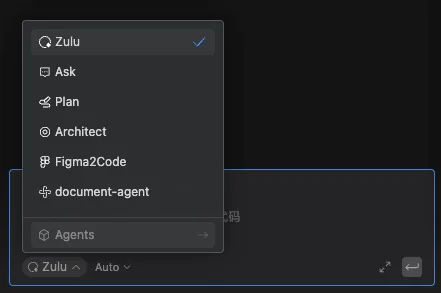
Build custom agents in the Comate coding assistant, enabling controllable, dedicated workflows through roles, skills, tools, and behavior rules.
A collection of Skills for AI Agents providing Ark document retrieval, model performance benchmarking, model migration analysis, and Seedance prompt optimization.